10 Useful Mac Tips to Keep Your Mac Running Smoothly
Mac computers are known for their excellent performance and reliability . However , regular maintenance and good usage habits can help your Mac stay fast , secure and reliable for a longer time.
Whether you use a MacBook for work , business , study , or entertainment , these simple tips can help you get the most from your Mac .
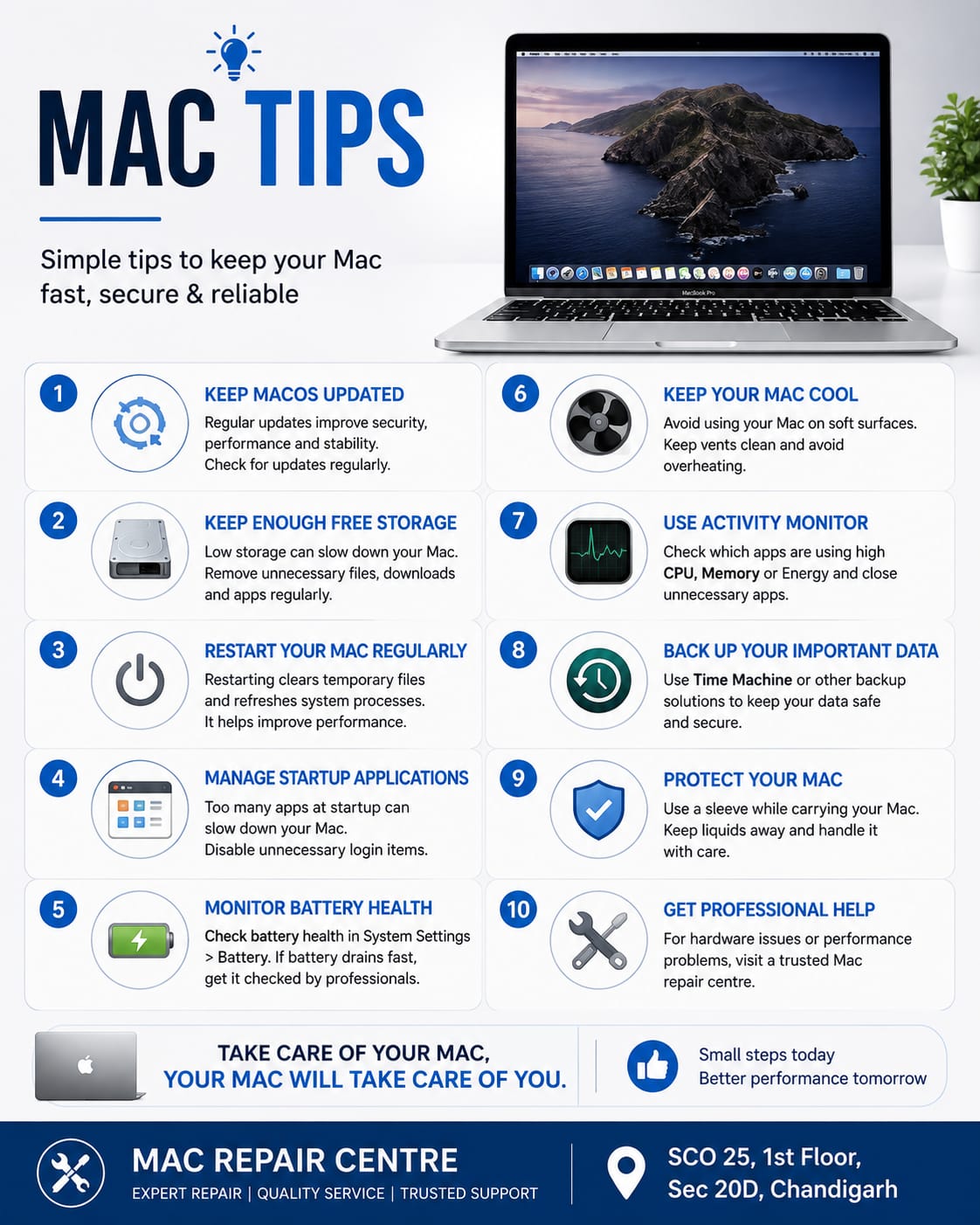
1 . Keep macOS Updated
Regular macOS updates can improve performance , security and compatibility . Check for available updates in System Settings > General > Software Update.
2 . Keep Enough Free Storage
A Mac can become slower when its storage is almost full . Regularly remove unnecessary downloads , duplicate files , and applications you no longer use .
3. Restart Your Mac Regularly
If your becomes slow , freezes , or behave unexpectedly , a simple restart can often help. Restarting allows macOS to refresh system processes .
4. Manage Startup Applications
Too many applications launching automatically can increases startup time . Review your login items in System Settings > General > Login Items and disable applications you do not need at startup.
5. Monitor Battery Health
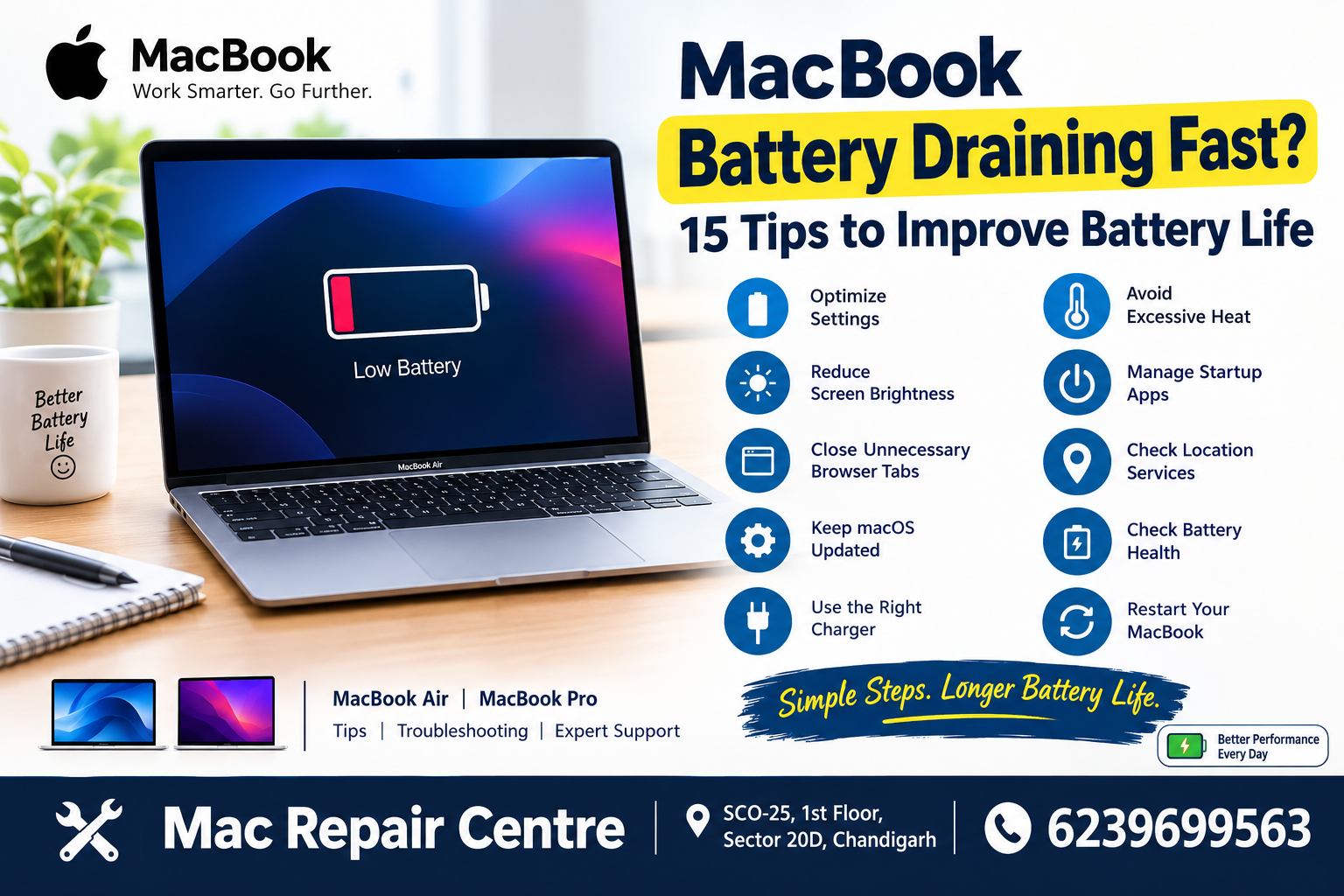
For MacBooks , battery performance naturally decreases with usage . You can check battery information in System Setting > Battery . If the battery drains unusually fast or the MacBook shuts unexpectedly , professional inspection may be needed.
6. Keep Your Mac Cool
Avoid using your MacBook on soft surfaces such as beds or thick blankets , as they can restrict airflow . Excessive heat may affect performance and battery life .
7. Use Activity Monitor
If your Mac is running slowly , Activity Monitor can help you identify applications using excessive CPU , memory , or energy .
8. Back Up Your Important Data
Regular backups can protect your important documents photos , and business files . Apples backups on an external storage device .
9. Protect Your Mac From Physical Damage
Use a suitable protective case or sleeve when carrying your MacBook . Avoid placing liquids near your computer handle the display carefully .
10. Get Professional Help When Needed
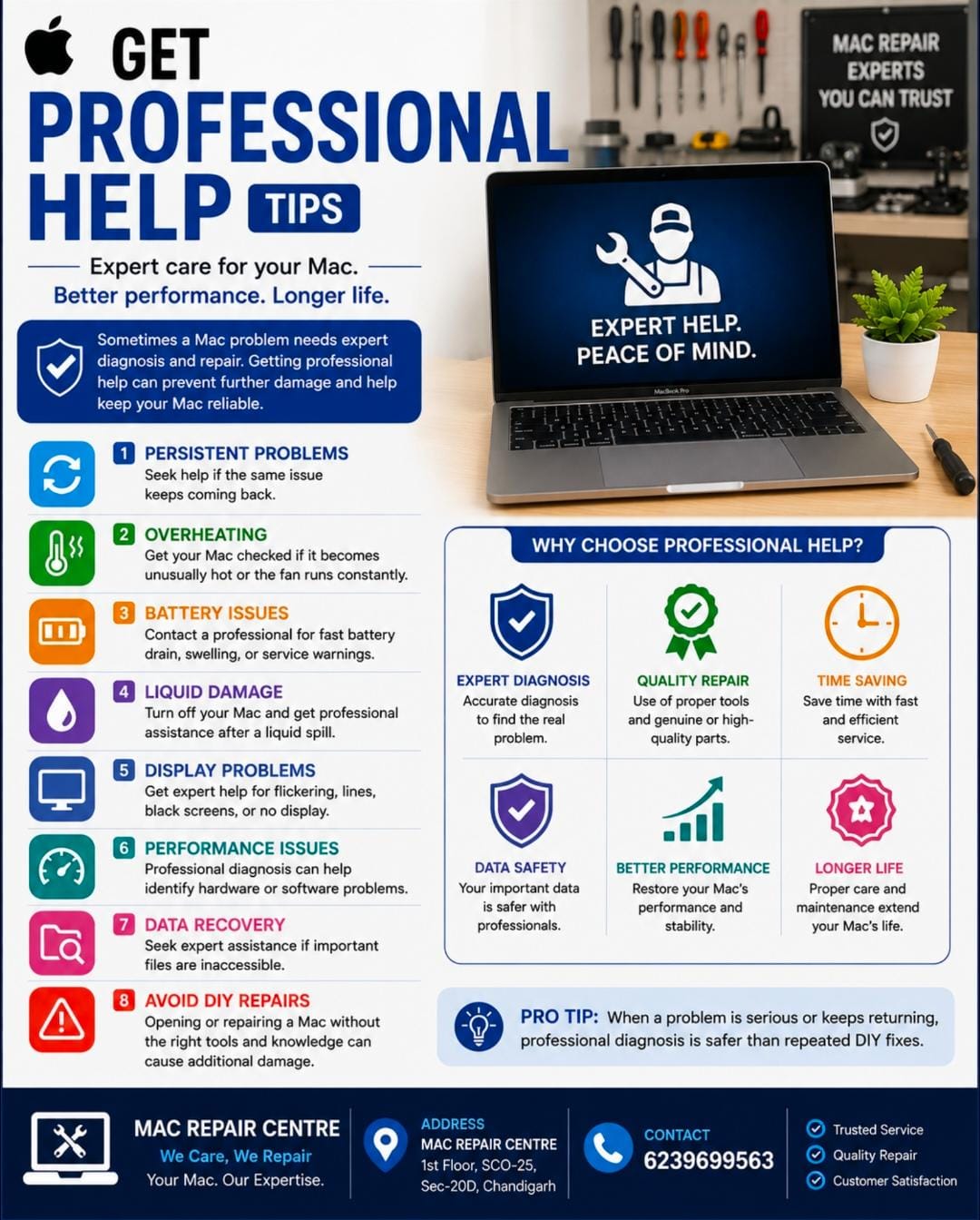
If your Mac repeatedly freezes , overheats , does not turn on , shows no display , does not charge , or has other hardware problems , avoid unnecessary DIY repairs . A professional Mac repair centre can diagnose the issue and recommend the right solution .
Conclusion
Taking care of your Mac does not have to be complicated . Keeping macOS updated , maintaining free storage , monitoring battery health , protecting your Mac from heat and physical damage , and backing up your data can make a big difference .
If your Mac develops a hardware or performance problem , professional diagnosis can help identify the cause and prevent further damage .