# MacBook Battery Draining Fast? 15 Practical Tips to Improve Battery Life
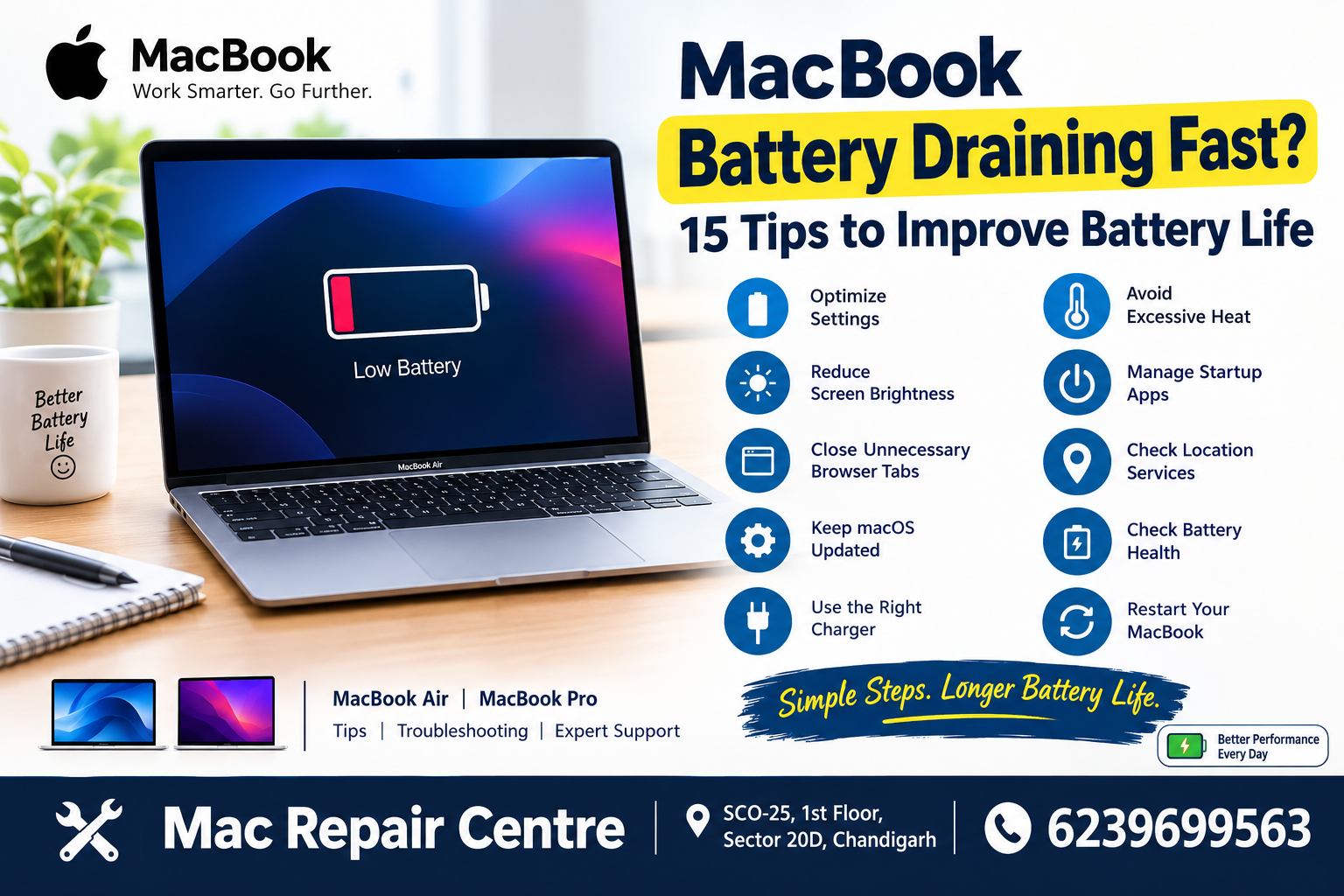
# MacBook Battery Draining Fast? 15 Practical Tips to Improve Battery Life
## Introduction
A MacBook is designed to deliver reliable performance, whether you use it for office work, online meetings, studying, editing photos, or managing your business. One of the biggest advantages of a MacBook is its battery life. However, even a relatively new MacBook Air or MacBook Pro can sometimes start losing battery power faster than expected.
You might notice that your MacBook used to last an entire working day, but now you need to charge it several times. Perhaps the battery percentage drops quickly while browsing the internet, watching videos, or working with multiple applications. In some cases, the laptop may also become warm even when you are not doing anything particularly demanding.
Before assuming that the battery needs replacement, it is worth checking a few things. High background activity, screen brightness, browser tabs, outdated software, connected accessories, and battery health can all affect how long your MacBook lasts between charges.
The good news is that you can often improve battery performance by making a few simple changes.
In this guide, we will explain 15 practical tips to help your MacBook battery last longer, how to identify possible battery problems, and when it may be time to contact a professional MacBook repair technician.
## 1. Check Which Applications Are Using the Most Battery
One of the easiest ways to investigate battery drain is to check which applications are consuming the most energy.
Some apps continue performing tasks in the background even when you are not actively using them. Video editing software, games, cloud synchronisation tools, and certain browser tabs can use significant processing power.
On your MacBook:
1. Open Finder and go to Applications.
2. Open Utilities.
3. Launch Activity Monitor.
4. Select the Energy tab.
5. Review the applications and processes listed.
Look for applications with unusually high energy usage. If you are no longer using one of these applications, save your work and close it normally.
Keep in mind that an application using more energy is not necessarily faulty. For example, video editing software may consume substantial power while exporting a large project. The important thing is to identify apps that continue consuming excessive energy when you do not need them.
## 2. Reduce Screen Brightness
Your MacBook display is one of the components that consumes battery power. Running the screen at maximum brightness for several hours can reduce the time you get from a single charge.
Try keeping brightness at a comfortable level instead of leaving it at 100%.
You can adjust it using the brightness keys on your keyboard or through System Settings, depending on your macOS version.
Automatic brightness adjustment can also help on supported models.
If you regularly work indoors, a moderate brightness setting is usually sufficient. When working outside in bright sunlight, you may need to increase it temporarily.
This is a simple adjustment, but it can make a noticeable difference during long working sessions.
## 3. Enable Low Power Mode
Low Power Mode is a useful macOS feature that reduces energy consumption by adjusting certain system activities and performance behaviours.
To check the option:
1. Open System Settings.
2. Select Battery.
3. Look for Low Power Mode.
4. Choose an available setting appropriate for your MacBook and macOS version.
The exact options can vary between MacBook models and operating system versions.
Low Power Mode is especially useful when you are travelling, attending meetings, or working somewhere without convenient access to a charger.
Some demanding tasks may take longer in this mode. However, for email, document editing, browsing, and everyday office work, it can be a practical way to extend battery life.
## 4. Close Unnecessary Browser Tabs
Many people keep dozens of browser tabs open throughout the day. Although modern browsers manage resources efficiently, certain websites can continue running scripts, playing media, refreshing information, or using significant memory.
This is particularly common with video websites, online meetings, web applications, and pages containing complex animations.
Try closing tabs that you no longer need. If you regularly work with many websites, consider bookmarking important pages instead of leaving everything open.
You can also quit the browser when you finish working.
If battery drain continues, compare the energy usage of different browsers on your MacBook. The results can vary depending on your macOS version, extensions, websites, and browsing habits.
## 5. Keep macOS Updated
Apple regularly releases macOS updates that include security improvements, bug fixes, and compatibility changes. Some updates may also address performance or power-management issues.
To check for updates:
1. Open System Settings.
2. Select General.
3. Click Software Update.
4. Install an appropriate available update after backing up important data.
It is normal for your MacBook to use additional energy for a while after a major update. Spotlight indexing, photo analysis, iCloud synchronisation, and other background tasks may temporarily increase activity.
If the battery drains faster immediately after updating macOS, allow some time for these tasks to finish.
If the problem continues for several days, check Activity Monitor and review your battery settings.
## 6. Disconnect Accessories You Are Not Using
External accessories can draw power from your MacBook, particularly when connected through USB or Thunderbolt ports.
Examples include:
- External hard drives and SSDs.
- USB hubs and adapters.
- Smartphones connected for charging.
- Certain external displays and accessories.
- Other bus-powered devices.
When you are working on battery power, disconnect accessories that you do not need.
An external monitor can also increase energy consumption, especially when it requires additional graphics processing.
You do not need to remove every accessory all the time. Simply disconnecting unnecessary devices when portability and battery life matter can help reduce power usage.
## 7. Check Your MacBook Battery Health
If your MacBook is several years old, the battery itself may be losing its original capacity.
Lithium-ion batteries gradually wear out through normal use and ageing. As their maximum capacity decreases, they store less energy than they did when new.
To check the battery condition:
1. Open System Settings.
2. Select Battery.
3. Look for Battery Health.
4. Review the displayed condition and maximum capacity, where available.
You may see a condition such as Normal or Service Recommended, depending on the model and macOS version.
A Normal status is reassuring, but it does not guarantee that every battery-related issue has been ruled out. Likewise, a reduced maximum capacity does not automatically mean you must replace the battery immediately.
Consider your actual usage, how quickly the battery drains, and whether macOS recommends servicing.
If the battery needs service, a technician can help determine whether replacement is appropriate.
## 8. Avoid Excessive Heat
Heat is an important factor in battery health. High temperatures can affect lithium-ion batteries and may contribute to faster long-term battery degradation.
Avoid leaving your MacBook in a hot car, placing it in direct sunlight for extended periods, or using it on soft surfaces that block ventilation.
A desk or another firm surface is generally a better choice.
If your MacBook becomes unusually hot during simple tasks, check whether demanding applications are running in the background.
Also make sure the ventilation openings are not obstructed.
If the device repeatedly overheats, the fans behave abnormally, or performance drops significantly, professional inspection may be necessary. Dust accumulation, software issues, and hardware faults can all contribute to excessive heat.
If you notice a swollen battery, a raised trackpad, or a case that is separating, stop using and charging the MacBook and arrange professional battery service promptly.
## 9. Manage Apps That Launch at Startup
Some applications automatically open when you log in to your MacBook. Others continue running background processes even when you are not using them.
Too many unnecessary startup applications can increase background activity and make your MacBook feel slower.
To review login items:
1. Open System Settings.
2. Select General.
3. Click Login Items & Extensions.
4. Review the applications that open at login.
5. Remove unnecessary items from the login list.
Be careful not to disable services that are important for security, device management, or software you rely on.
Reducing unnecessary startup applications can help your MacBook start more cleanly and limit unwanted background activity.
## 10. Turn Off Keyboard Backlighting When Appropriate
MacBook keyboard backlighting is useful in dimly lit environments, but it consumes some power.
If you are working in a bright room, reducing the keyboard brightness or switching it off may help conserve energy.
The available controls depend on your MacBook model and macOS version. Some models adjust keyboard illumination automatically according to ambient lighting.
This adjustment is unlikely to solve severe battery drain on its own. However, it is one of several small changes that can improve overall efficiency.
## 11. Review Location Services and Background Activity
Some applications use your location to provide maps, weather information, location-based reminders, and other features.
These services are useful, but you may not need every application to access your location.
Open System Settings and navigate to Privacy & Security, then Location Services. Review the applications listed and disable access for apps that do not need it.
You should also check background applications such as cloud storage, synchronisation utilities, and backup software.
Do not turn off useful security or backup services just to save a small amount of battery power. Instead, identify unnecessary activity and adjust the settings that make sense for your daily workflow.
## 12. Understand Optimised Battery Charging
Many MacBook users believe that keeping the battery at 100% at all times is the best approach. However, prolonged time at a full charge, especially at high temperatures, can contribute to battery ageing.
macOS supports battery-management features such as Optimised Battery Charging on compatible systems. These features can learn charging patterns and sometimes delay charging beyond 80% until a full charge is expected to be needed.
You can review the relevant settings under System Settings and Battery.
Do not worry if your MacBook occasionally pauses charging before reaching 100%. This behaviour can be part of normal battery management.
You also do not need to completely drain the battery before charging it again. Lithium-ion batteries do not require regular full discharge cycles.
For everyday use, focus on keeping the device at a reasonable temperature and allowing the built-in charging management features to work.
## 13. Use the Correct Charger
Using a suitable charger is important for safe and reliable charging.
A compatible Apple power adapter or a reputable, standards-compliant USB-C power adapter with sufficient power output is generally appropriate for compatible MacBook models.
An underpowered adapter may charge your MacBook slowly or may not provide enough power during demanding tasks.
Check the charging cable, adapter, and connector for visible damage. If charging repeatedly disconnects, the connector becomes unusually hot, or the battery percentage does not increase normally, investigate the problem instead of repeatedly reconnecting the charger.
A charging issue does not always mean the battery is faulty. The adapter, cable, charging port, or internal charging circuitry may also be involved.
If you suspect an electrical fault, seek professional diagnosis.
## 14. Restart Your MacBook if Battery Drain Seems Unusual
Sometimes a background process or application can become stuck and continue using more resources than expected.
If your MacBook suddenly begins draining battery unusually quickly, a restart is a reasonable first troubleshooting step.
Save your work, close open applications, and restart the computer using the Apple menu.
After restarting, check Activity Monitor again to see whether energy usage returns to normal.
A restart may resolve a temporary software problem, but it will not repair a physically degraded battery or a defective charging component.
If the issue returns repeatedly, look for a particular application or process that may be causing it.
## 15. Know When Your MacBook Needs Professional Repair
If you have tried the basic steps and your MacBook still loses battery power rapidly, it may be time for a professional inspection.
Battery-related symptoms can have several possible causes, including:
- A battery that has lost significant capacity.
- A damaged charging cable or adapter.
- A faulty charging port.
- Excessive background processing.
- Software or firmware-related problems.
- Internal hardware or power-management faults.
The correct solution depends on the symptoms and diagnostic results.
For example, a MacBook that works normally when connected to a charger but shuts down unexpectedly on battery power may need a battery assessment. A MacBook that does not charge properly could have a problem with the adapter, port, battery, or internal circuitry.
Avoid replacing parts based on symptoms alone. A proper diagnosis can help prevent unnecessary expenses.
At Mac Repair Centre, customers can seek professional assistance for MacBook battery concerns, charging issues, overheating, and other hardware problems. A technician can inspect the device and recommend the appropriate next step.
## Common MacBook Battery Problems and What They May Mean
Here are a few common symptoms and possible explanations.
**Battery percentage drops quickly:** High energy usage, reduced battery capacity, or background activity may be responsible.
**MacBook switches off unexpectedly:** This can be associated with battery degradation, power-management problems, or another hardware issue.
**MacBook charges very slowly:** Check the charger, cable, power source, and charging port before assuming the battery needs replacement.
**MacBook becomes hot while charging:** Some warmth can be normal, particularly during demanding tasks. Persistent excessive heat should be investigated.
**Battery health shows Service Recommended:** The battery may need professional assessment or replacement.
These are possible explanations, not definitive diagnoses. Several different faults can produce similar symptoms.
## Frequently Asked Questions (FAQs)
### 1. Why is my MacBook battery draining so fast?
Common causes include high screen brightness, demanding applications, background processes, browser activity, and an ageing battery. Check Activity Monitor and Battery Health to identify possible causes.
### 2. How many years does a MacBook battery last?
Battery lifespan depends on the model, usage, charging habits, temperature, and battery age. Some batteries remain useful for many years, while others lose capacity sooner. Apple specifies battery cycle limits for different models, but reaching a particular cycle count does not automatically mean the battery has failed.
### 3. Is it okay to leave my MacBook charging overnight?
Generally, yes. Compatible MacBooks have built-in charging management, including features designed to reduce battery ageing. Avoid exposing the device to excessive heat and use a suitable charger.
### 4. Should I drain my MacBook battery to 0% before charging?
No. Lithium-ion batteries do not need regular full discharges. Charging when convenient is generally better than repeatedly allowing the battery to become completely empty.
### 5. Does Low Power Mode damage a MacBook?
No. Low Power Mode is a built-in energy-saving feature. It adjusts certain system behaviours to reduce energy consumption.
### 6. Can a macOS update cause battery drain?
Battery usage can temporarily increase after an update because macOS may perform indexing, synchronisation, and other background tasks. If the problem persists, investigate further.
### 7. How can I check my MacBook battery cycle count?
On many models, open the Apple menu, select About This Mac, and look for More Info or System Report. Under Hardware, select Power to view available battery information, including cycle count on supported models. The exact navigation varies by macOS version.
### 8. Is it safe to use my MacBook while charging?
Yes, normal use while charging is generally safe with a compatible power adapter and cable. Ensure the MacBook has adequate ventilation and avoid excessive heat.
### 9. Can a faulty charger cause battery problems?
A faulty or unsuitable charger can cause charging difficulties. However, rapid battery drain while disconnected from power may have a different cause. The charger, battery, and charging circuitry should be assessed separately.
### 10. When should I replace my MacBook battery?
Consider replacement if battery capacity has significantly declined, the MacBook shuts down unexpectedly, or macOS recommends battery service. A technician can confirm whether replacement is necessary.
## Conclusion
A MacBook battery that drains quickly can be frustrating, especially when you depend on your laptop for work, studies, or business. Fortunately, the problem does not always mean you need a new battery.
Start by checking Activity Monitor, reducing unnecessary energy consumption, adjusting screen brightness, reviewing startup applications, and keeping macOS updated. Pay attention to battery health and avoid exposing your MacBook to excessive heat.
If the battery continues to drain unusually fast, the MacBook shuts down unexpectedly, or charging becomes unreliable, professional diagnosis is the safest way to identify the actual cause.
Taking care of your MacBook today can help you get more dependable performance from it over time.
**Need help with your MacBook?**
Mac Repair Centre provides MacBook repair and troubleshooting services in Chandigarh.
**Mac Repair Centre**
Address: SCO-25, 1st Floor, Sector 20D, Chandigarh
Contact: 6239699563