MacBook Running Slow ? Here's How to Fix It Guide
MacBook Running Slow? Here’s How to Fix It
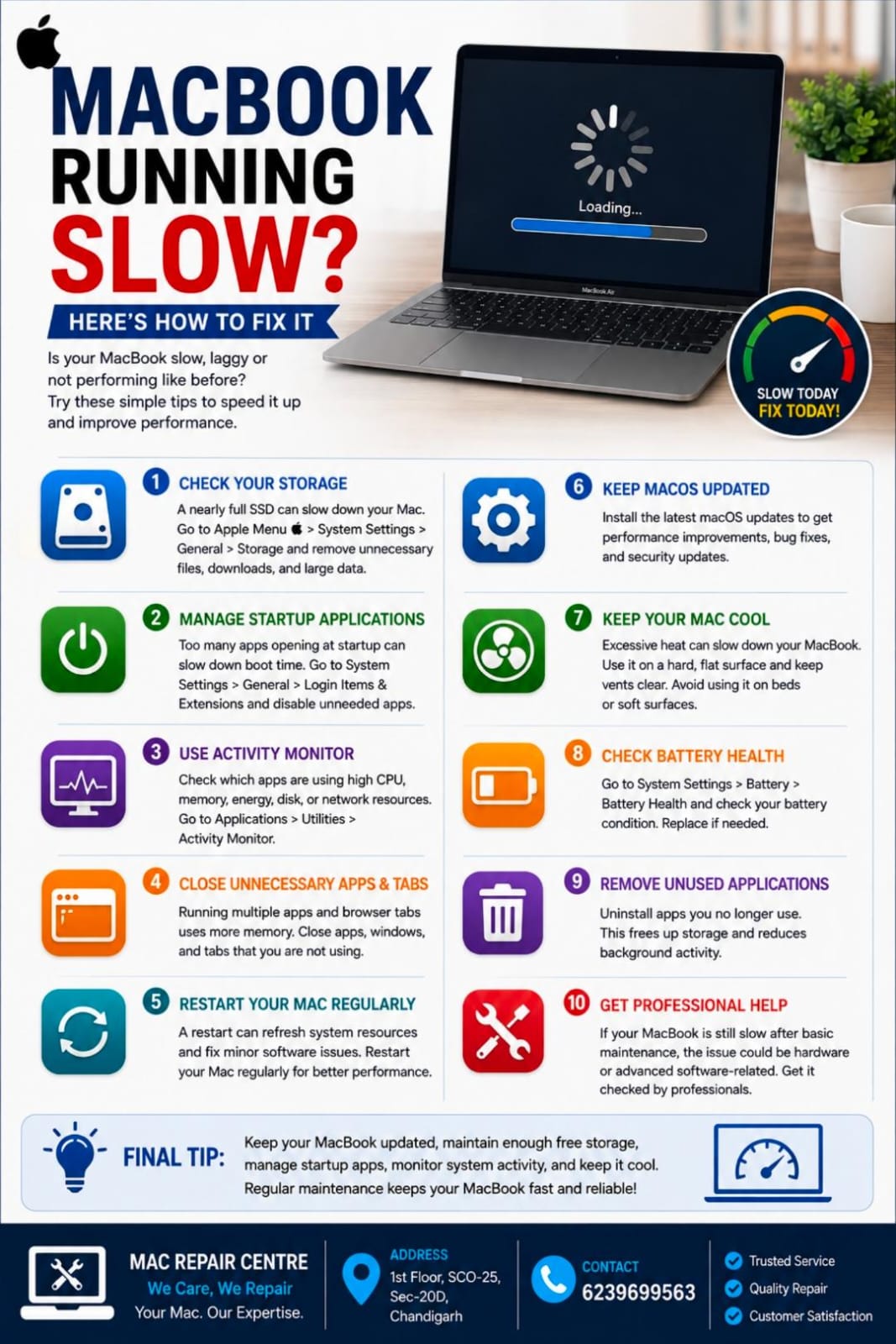
Is your MacBook taking longer to start, apps opening slowly, or the system freezing frequently? A slow MacBook can be caused by low storage, too many background apps, overheating, outdated software, or an aging battery.
1. Check Your Storage
A nearly full SSD can affect your MacBook’s performance. Go to:
Apple Menu → System Settings → General → Storage
Remove unnecessary downloads, large files, unused applications, and duplicate data.
2. Manage Startup Applications
Too many apps opening when you start your Mac can slow down the boot process.
Go to System Settings → General → Login Items & Extensions and disable applications you don't need to launch automatically.
3. Use Activity Monitor
Activity Monitor can show which applications are using excessive CPU, memory, energy, disk, or network resources.
Go to Applications → Utilities → Activity Monitor and check for apps consuming unusually high resources.
4. Close Unnecessary Apps and Tabs
Running multiple applications and browser tabs can use significant memory. Close apps, windows, and tabs that you are not currently using.
5. Restart Your Mac Regularly
A restart can refresh system resources and resolve minor software problems. If your Mac has been running continuously for a long time, restarting may help improve responsiveness.
6. Keep macOS Updated
Install compatible macOS updates to receive performance improvements, bug fixes, and security updates.
7. Keep Your Mac Cool
Excessive heat can cause your MacBook to reduce performance. Use it on a hard, flat surface, keep ventilation clear, and avoid direct sunlight or soft surfaces such as beds and blankets.
8. Check Battery Health
An aging battery can sometimes contribute to performance issues. Check:
System Settings → Battery → Battery Health
If you see Service Recommended or notice unusual battery behavior, consider having the battery professionally checked.
9. Remove Unused Applications
Uninstall apps you no longer use to free storage and reduce unnecessary background activity.
10. Get Professional Help
If your MacBook remains slow after basic maintenance, the problem could be related to the SSD, RAM, battery, overheating, or another hardware or software issue. A professional diagnosis can identify the underlying cause and help prevent further problems.
Final Tip
Keep your MacBook updated, maintain enough free storage, manage startup apps, monitor system activity, and keep the device cool. Regular maintenance can help your MacBook stay fast and reliable.
Mac Repair Centre
1st Floor, SCO-25, Sec-20D, Chandigarh
📞 6239699563