MacBook Microphone Not Working : Causes & Solutions Guide
MacBook Microphone Not Working : Causes & Solutions
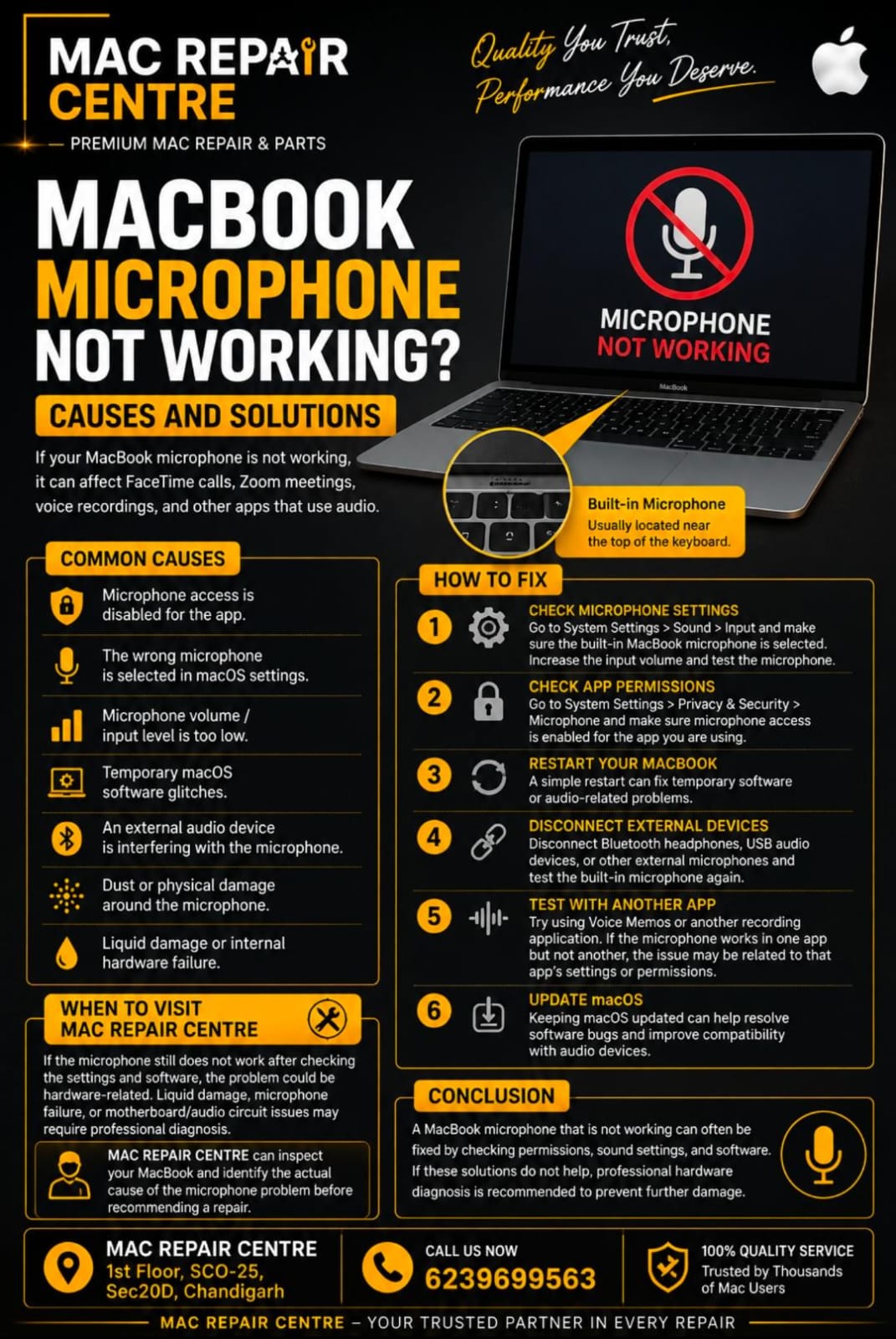
If your MacBook microphone is not working , if can affect Face time calls , Zoom meetings , voice recordings , and other apps that use audio . The problem may be caused by incorrect microphone settings , app permissions , software issues , or hardware damage .
Common Causes
• Microphone access is disabled for the app .
• The wrong microphone is selected in macOS settings .
• Microphone volume / input level is too low .
• Temporary macOS software glitches.
• An external audio device is interfering with the microphone .
• Dust or physical damaged around the microphone .
• Liquid damage or internal hardware failure .
How To Fix a MacBook Microphone
1.Check Microphone Setting = Go to System Setting > Sound > Input and the built in MacBook microphone is selected . Increase the input volume and test the microphone .
2.Check App Permissions = Go to Security > Microphone and make sure microphone access is enabled for the app you are using .
3. Restart Your MacBook= A simple restart can fix temporary software or audio – related problems.
4.Disconnect External Devices = Disconnect Bluetooth headphones , USB audio devices , or other external microphones and test the built – in microphone again .
5.Test With Another App= Try using Memos or another recording application . If the microphone works in one app but no another , the issue may be related to that app’s setting or permissions .
6.Update macOS = Keeping macOS updated can help resolve software bugs and improve compatibility with audio devices .
When to Visit a Mac Repair Centre
If the microphone still does not work after checking the settings and software , the problem colud be hardware – related . Liquid damage , microphone failure , or motherboard / audio circuit issues may require professional diagnosis .
Mac Repair Centre can inspect your MacBook and identify the actual cause of the microphone problem before recommending a repair .
Conclusion
A MacBook microphone that is not working can often be fixed by checking permissions , sound settings , and software . If these solutions do not help , professional hardware diagnose is recommended to prevent further damage .