MacBook Maintenance Tips for Long - Term Guide
MacBook Maintenance Tips for Long-Term Performance
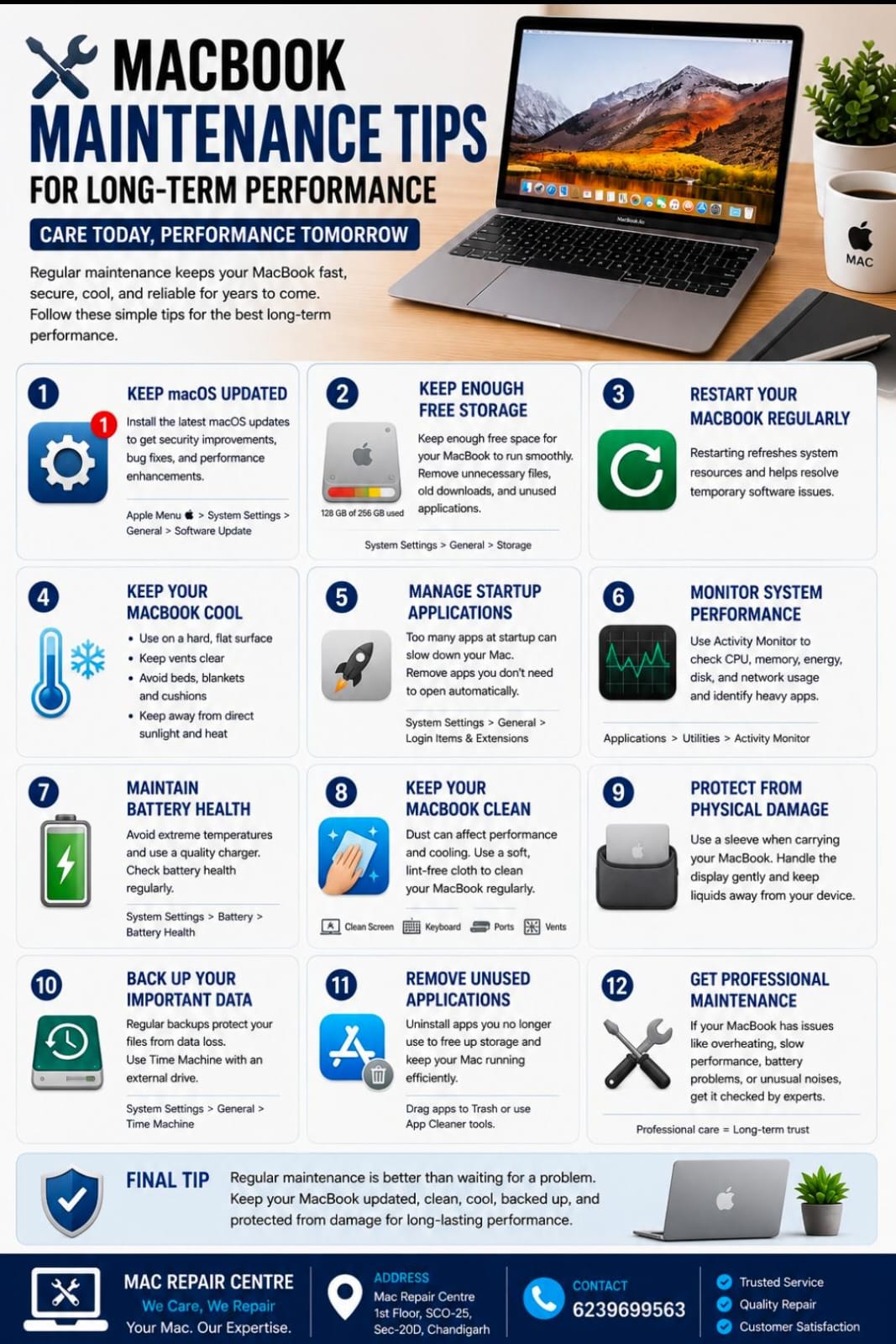
A MacBook is designed to provide reliable performance for years, but regular maintenance can help keep it fast, cool, secure, and dependable. Simple habits can also help prevent avoidable hardware and software problems.
1. Keep macOS Updated
Install compatible macOS updates regularly. Updates can include security improvements, bug fixes, performance enhancements, and compatibility improvements.
Go to Apple Menu → System Settings → General → Software Update to check for available updates.
2. Keep Enough Free Storage
Avoid keeping your MacBook's storage almost completely full. Remove unnecessary downloads, old files, unused applications, and duplicate data.
Go to System Settings → General → Storage to see what is taking up space.
3. Restart Your MacBook Regularly
A restart can refresh system resources and help resolve temporary software issues. If your MacBook has been running for a long time or starts feeling sluggish, restarting is a simple first step.
4. Keep Your MacBook Cool
Excessive heat can affect performance and battery health.
Use your MacBook on a hard, flat surface.
Keep ventilation areas clear.
Avoid beds, blankets, and cushions.
Keep the device away from direct sunlight and excessive heat.
5. Manage Startup Applications
Too many applications launching automatically can slow down startup and consume resources.
Go to System Settings → General → Login Items & Extensions and remove apps you don't need to open automatically.
6. Monitor System Performance
Use Activity Monitor to check CPU, memory, energy, disk, and network usage. It can help you identify applications that are using unusually high system resources.
7. Maintain Battery Health
Avoid exposing your MacBook to extreme temperatures and use a compatible, quality charger. You can check battery condition under:
System Settings → Battery → Battery Health
If macOS recommends service or the battery behaves unusually, consider professional inspection.
8. Keep Your MacBook Clean
Dust can accumulate around the keyboard, ports, speakers, and ventilation areas. Use a soft, lint-free microfiber cloth for routine cleaning and avoid spraying liquid directly onto the MacBook.
9. Protect Your MacBook from Physical Damage
Use a protective sleeve when carrying your MacBook. Handle the display gently and avoid placing heavy objects on top of it.
Keep drinks and liquids away from the device to reduce the risk of liquid damage.
10. Back Up Your Important Data
Regular backups protect your important files if your MacBook experiences hardware failure, accidental damage, or software problems.
Time Machine can be used with a compatible external storage device to create regular backups.
11. Remove Unused Applications
Applications you no longer use can take up valuable storage. Uninstall unnecessary software and avoid installing applications from untrusted sources.
12. Get Professional Maintenance When Needed
If your MacBook becomes unusually hot, runs slowly, has battery problems, makes unusual noises, or experiences repeated hardware issues, professional diagnosis can help identify the underlying problem.
Final Tip
Regular maintenance is better than waiting for a serious problem. Keep your MacBook updated, clean, cool, backed up, and protected from physical damage. These simple habits can help maintain good performance and reliability for years.
Mac Repair Centre
1st Floor, SCO-25, Sec-20D, Chandigarh
📞 6239699563